A vectorscope shows the color in a frame. Direction shows hue. Distance from the center shows how strong the color is. A brighter trace means more pixels share that color.
Use it to check color casts, compare saturation, and read the skin-tone line. Use a waveform to check exposure.
These steps work on iPhone, iPad, and Mac with Apple silicon.
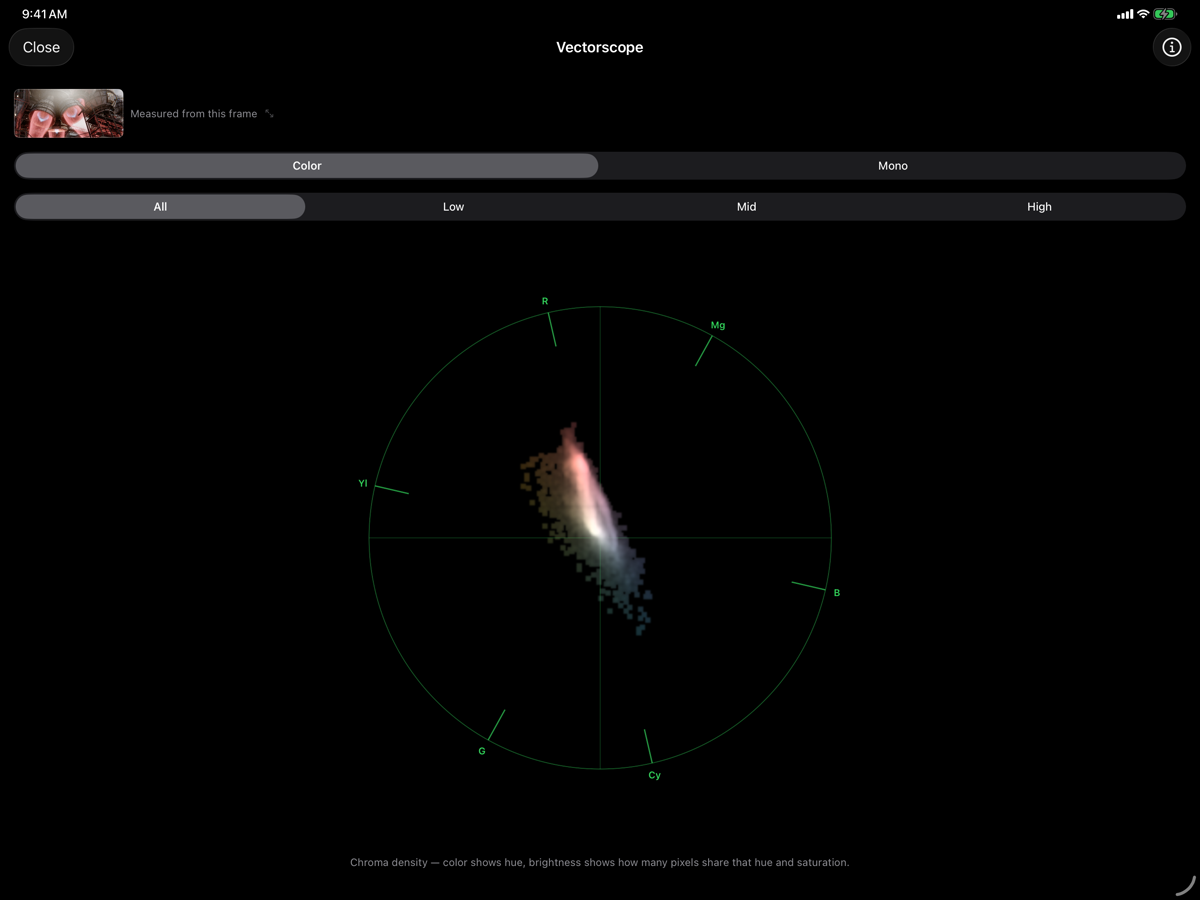
How to read the circle
- Angle: hue
- The labels mark red (R), yellow (Yl), green (G), cyan (Cy), blue (B), and magenta (Mg). Pixels with similar hues form clusters near the same direction.
- Distance: chroma strength
- Neutral black, gray, and white sit at the center. More strongly colored pixels extend farther out. Use the same zoom and signal type when you compare readings.
- Trace brightness: density
- A bright cluster means many pixels share similar color. It does not mean those pixels are bright in the original scene.
A vectorscope does not preserve image position. A red object on the left and the same red object on the right contribute to the same part of the plot.
How to use the vectorscope in BitLens
- Open a video's file details and choose Watch with Live Scopes.
- Open the scope-name menu in the player and choose Vectorscope. Start with the All luma band.
- Play or scrub the video, then pause where you want to inspect color. Switch to Low, Mid, or High to focus on a brightness band.
- For a closer look, return to file details and choose Analyze a Frame. Choose the frame, wait for its preview, then select Vectorscope.
- In the full-screen view, choose Color or Mono, and use Graticule to select 75% or 100% color-bar targets and toggle the skin-tone line.
- Use Export to share a scope snapshot, or the information button for How to read this.
Live scopes, frame analysis, and scope snapshot export require BitLens Pro, available as a one-time purchase.
Three useful color checks
A mostly neutral scene
A gray card or a scene with mostly neutral surfaces should produce a cloud near the center. If those surfaces look tinted and the cloud leans toward that hue, check for a color cast. Green foliage will also pull the cloud toward green, even with correct white balance.
A saturated red object
Expect a cluster toward R. If you raise its saturation in an editor, its cluster will usually move outward. BitLens reads the file. Changing the scope style leaves the video’s color unchanged.
A face under colored lighting
The skin-tone line provides a hue reference between red and yellow. Skin color, light, makeup, reflections, and the grade all affect the reading. Treat the line as a guide when checking a cast. Faces do not all need to match one target. The whole-frame cloud also includes clothes and background colors.
Color, Mono, luma bands, and zoom
Color tints the full-screen cloud to help identify hues. Mono uses a monochrome trace, making position and density easier to judge without the color tint.
Low, Mid, and High filter source pixels by brightness. Use them to spot a cool cast in the shadows that warm highlights might hide. BitLens scales each band to its own peak density. Equally bright traces in two bands can represent different numbers of pixels.
The full-screen 1×, 2×, and 3× controls magnify a compact cloud. Return to 1× before comparing the overall spread with another frame. At higher zoom, part of the cloud can fall outside the plot. That alone does not mean the file has clipped colors.
What do 75% and 100% targets mean?
The small target boxes show where the selected color bars should land. Choose the target set that matches the reference pattern you are checking. Natural footage does not need to fill the boxes. They are reference points for color bars, not limits that apply to every delivery.
For a BT.2020 source, BitLens also offers BT.2020 and Rec. 709 target-gamut choices. HDR targets account for the signal's transfer function. Choose the right references for the source before judging an HDR cloud. It does not need to fill the circle.
To check a delivery, read the file’s metadata and the delivery requirements as well as the scope. Use BitLens’s chromaticity scope to compare colors with gamut boundaries.
Check brightness with the waveform
A centered cloud can belong to a bright white frame or a dark gray one. Continue with How to read a waveform monitor to inspect brightness, or return to the video scopes overview.
Inspect your own footage in BitLens.
Core playback is free. Pro unlocks live scopes, frame analysis, and scope exports with a one-time purchase.
