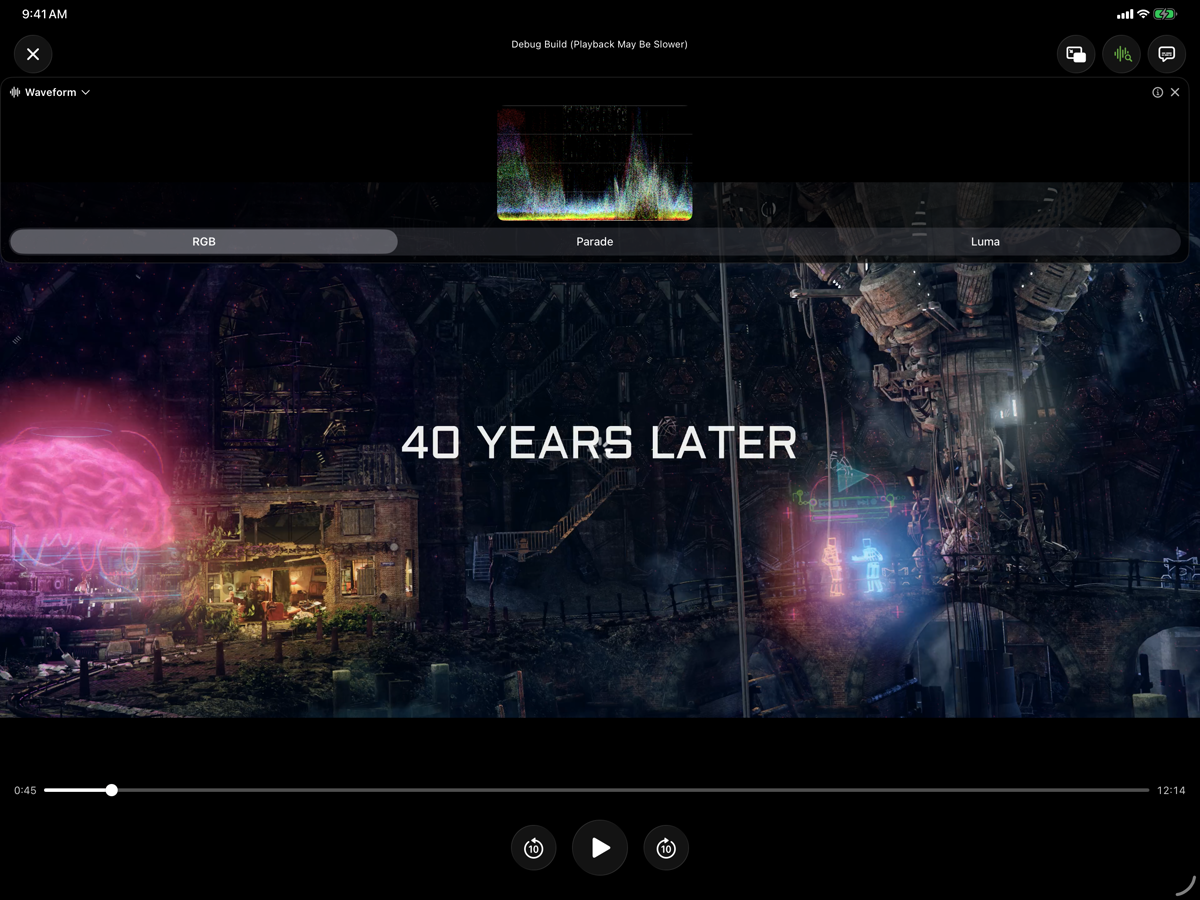
Video scopes help you read the brightness and color in a frame. A waveform shows bright and dark areas. A vectorscope shows hue and saturation. A histogram counts pixels at each level. A chromaticity diagram shows where colors fall within a color gamut.
BitLens shows live scopes while you play video on iPhone, iPad, and Mac with Apple silicon. You can also choose one frame and inspect it full screen.
The live scope sits alongside the picture and updates as you play or scrub. Select the image to view it at full size.
Which video scope should you use?
Where are the bright and dark areas?
Use the waveform. It preserves horizontal position, so a bright object on the right of the picture also appears on the right of the trace.
Which colors fill the frame?
Use the vectorscope. Direction shows hue. Distance from the center shows how strong the color is. Use a waveform to check exposure.
How are brightness and RGB levels distributed?
Use the histogram. Peaks mark levels shared by many pixels. The plot counts pixels across the whole frame, so it cannot show where an object sits.
How do the colors relate to a color gamut?
Use chromaticity. The diagram plots colors against gamut boundaries. Use it to check color range.
How to open live scopes in BitLens
Open a video in BitLens and go to its file details.
Choose Watch with Live Scopes to open the player with the scope panel visible. If the player is already open, use Show Live Scopes.
Open the scope-name menu in the panel and choose Waveform, Vectorscope, Histogram, or Chromaticity.
Play or scrub the video to follow the signal. Pause to look at a particular moment. The information button, How to read this, opens the guide for the selected scope.
Live scopes and frame analysis require BitLens Pro, a one-time purchase. Opening files and core playback are free.
How to inspect one video frame
In the video's file details, choose Analyze a Frame.
Move the position slider or frame ruler to the moment you want. Use Previous frame and Next frame to choose the frame.
Wait for the preview to update, then choose the scope. The Measured from this frame preview shows the frame behind the plot.
Close the scope to return to the frame picker and open another scope for the same moment.
Analyze a Frame is separate from Capture Still: inspecting a frame does not require saving an image first. You can also inspect photos with the app's scope tools.
Read the same scene in different ways
Imagine a person standing beside a bright window on the right of the frame. Each scope answers a different question:
The waveform shows the window's higher levels on the right. A flat band at the ceiling is a reason to inspect highlight detail.
The vectorscope shows the scene's color distribution, including skin and any warm or cool lighting. It does not preserve the window's location.
The histogram may show a concentration near the bright end, but cannot tell you that it belongs to the window.
The chromaticity diagram shows where the scene's colors sit relative to its reference gamuts.
Check the picture as you read the scopes. A white background, colored light, or a chosen grade can explain an unusual reading.
What changes with HDR?
Check whether the source uses PQ or HLG, then read the scope's scale. For PQ and HLG video, BitLens offers nits and code-value labels on its waveform. For HLG, BitLens calculates nits for a reference display. These values do not measure your device's screen brightness.
An HDR vectorscope cloud can sit near the center even when the picture has strong colors. Check the signal type and target gamut before judging its spread.