A waveform monitor shows signal level from bottom to top and image position from left to right. Use it to find shadows and highlights, check for lost detail, and compare the red, green, and blue channels.
A video waveform follows the width of one frame. An audio waveform follows time.
These steps work on iPhone, iPad, and Mac with Apple silicon.
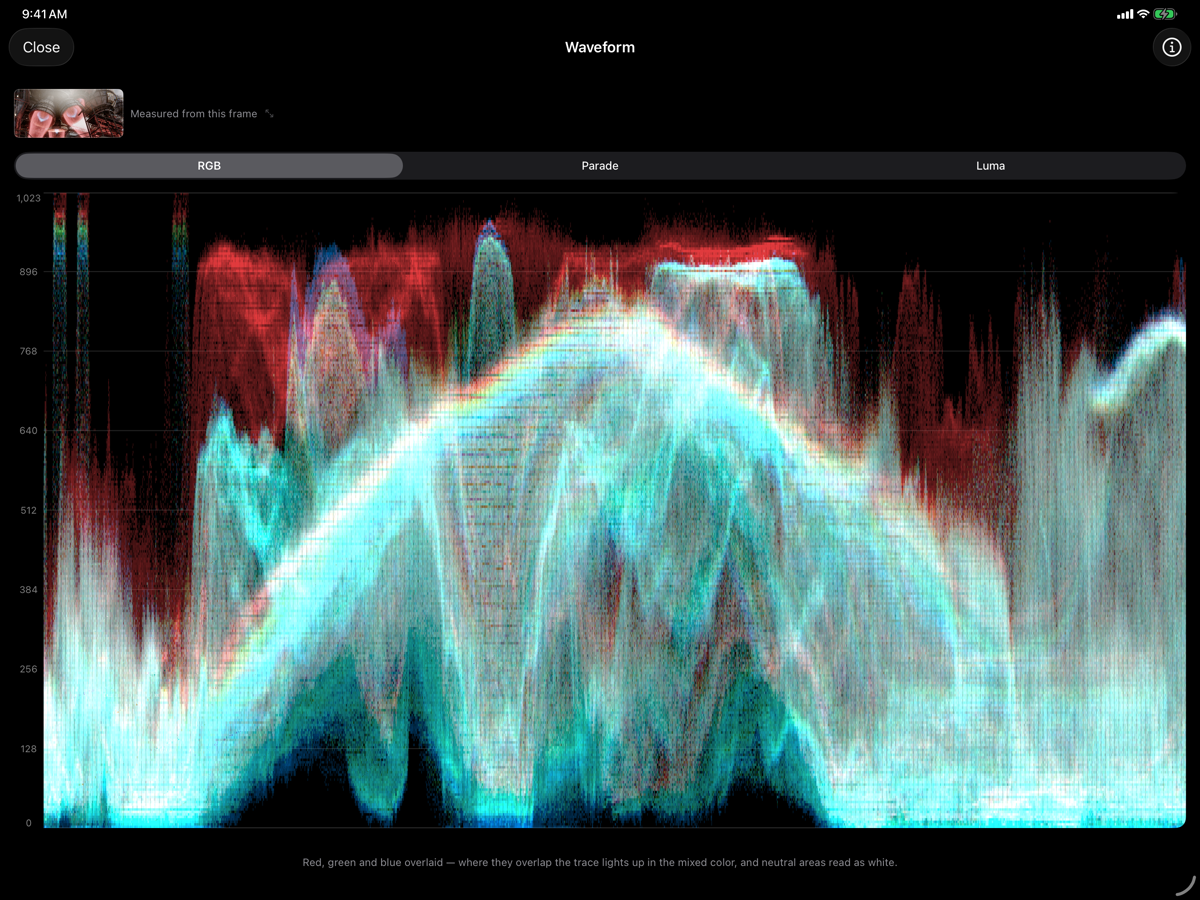
What the waveform shows
- Left to right: position in the picture
- Pixels from the left of the frame appear on the left of the plot. Pixels at different heights share a column in the plot. You can read their left-to-right position, but not their height in the picture.
- Bottom to top: signal level
- In Luma, low values are dark and high values are bright. In RGB, height shows each channel’s value. Check the scale before reading a number.
- Trace brightness: pixel density
- A bright band means many pixels share that position and level. It does not mean those pixels are brighter than a faint trace higher up.
How to use the waveform in BitLens
- Open a video's file details and choose Watch with Live Scopes.
- In the player's scope-name menu, choose Waveform. Select Luma for a first look at brightness, or RGB or Parade to compare channels.
- Play or scrub to the moment you want to inspect. Pause to compare a visible object with the trace at the same horizontal position.
- For a larger view of a selected frame, return to file details and choose Analyze a Frame. Set the position with the slider, frame ruler, or frame-step buttons, wait for the preview, then choose Waveform.
- In the full-screen view, use Export to share a scope snapshot. The information button opens How to read this.
Live scopes, frame analysis, and scope snapshot export require Pro. Analyzing a frame does not save a still image; use Capture Still when you want the source frame itself.
Luma, RGB, and Parade
Luma: start with brightness
Luma combines the channels to show brightness. Use it to find bright windows, deep shadows, and changes in exposure across a frame.
RGB: see the channels together
RGB overlays red, green, and blue. Where the traces overlap, their colors mix. Equal amounts appear white. Colored objects spread the channels apart, so a gap alone does not mean the white balance is wrong.
Parade: compare the channels side by side
Parade places red, green, and blue in separate lanes. Each lane spans the full image width. Find an object that should be neutral, then compare its level at the corresponding position in each lane. A higher red channel can suggest a warm cast. Check whether the light or the object itself is warm.
Three patterns to check
A bright window on the right
Look toward the right of the Luma waveform. The bright window should produce a high trace. A wide, flat band at the top can suggest clipping. Check the window for lost texture.
Shadows collecting at the bottom
A dense band near black may be a dark background or crushed shadow detail. Compare areas where you expect texture. A deliberately black title card should look very different from a dim room with visible detail.
One channel reaching the ceiling first
In RGB or Parade, a channel may flatten at its maximum even when Luma remains below its ceiling. Inspect saturated objects and highlights: channel clipping can affect color before the overall brightness trace looks extreme.
What do 0–1023 mean in BitLens?
BitLens uses a 0–1023 code-value display scale. In its expanded signal, black is 0 and the maximum code value is 1023. Video-range material is expanded before measurement, so a black level originally encoded at 64 in a 10-bit video-range file appears at 0 here.
The scope measures the decoded picture. To check the values stored in the file, you need to account for this range expansion. A trace at 0 alone does not mean the video-range tag is wrong.
For sources above 8 bits, the full-screen waveform measures at 10-bit precision. Live scopes also measure supported 10-bit video frames at 10-bit precision. For other frames, they map 8-bit measurements onto the same scale. The 0–1023 labels alone do not tell you the precision. Check the precision label in the full-screen view.
Reading an HDR waveform
For PQ and HLG sources, the waveform follows the encoded HDR signal and can label its grid in Nits. In the full-screen view, switch to Code values when you want the 0–1023 scale. The nits markings have uneven spacing because equal steps in the signal do not produce equal steps in light output.
The yellow line marks 203-nit HDR reference white. Use it as a guide for white surfaces and graphics. Faces and highlights do not all need to reach this line. Bright reflections can rise well above it.
PQ defines absolute light levels. HLG is relative, so BitLens calculates its nits labels for a 1,000-nit reference display. These readings do not measure your device's screen brightness.
Check color with a vectorscope
Use the waveform to compare channel levels and the vectorscope to read hue and saturation. Continue with How to read a vectorscope, or return to the video scopes overview to compare all four tools.
Inspect your own footage in BitLens.
Core playback is free. Pro unlocks live scopes, frame analysis, and scope exports with a one-time purchase.
